ClearRec

Free Chrome Extension · v1.0.0

Record your screen. Keep every byte.

ClearRec is a free Chrome screen recorder that captures your screen, browser tab, or webcam, then trims, crops, and exports to MP4, WebM, or GIF — entirely inside your browser. No login, no cloud upload, no analytics. Recordings save to your Downloads folder via Chrome's own download manager. Yours from the moment they exist.

4K@60
Max capture
50 Mbps
Peak bitrate
6
Quality tiers
0
Bytes uploaded
chrome-extension://clearrec/popup.htmlLIVE
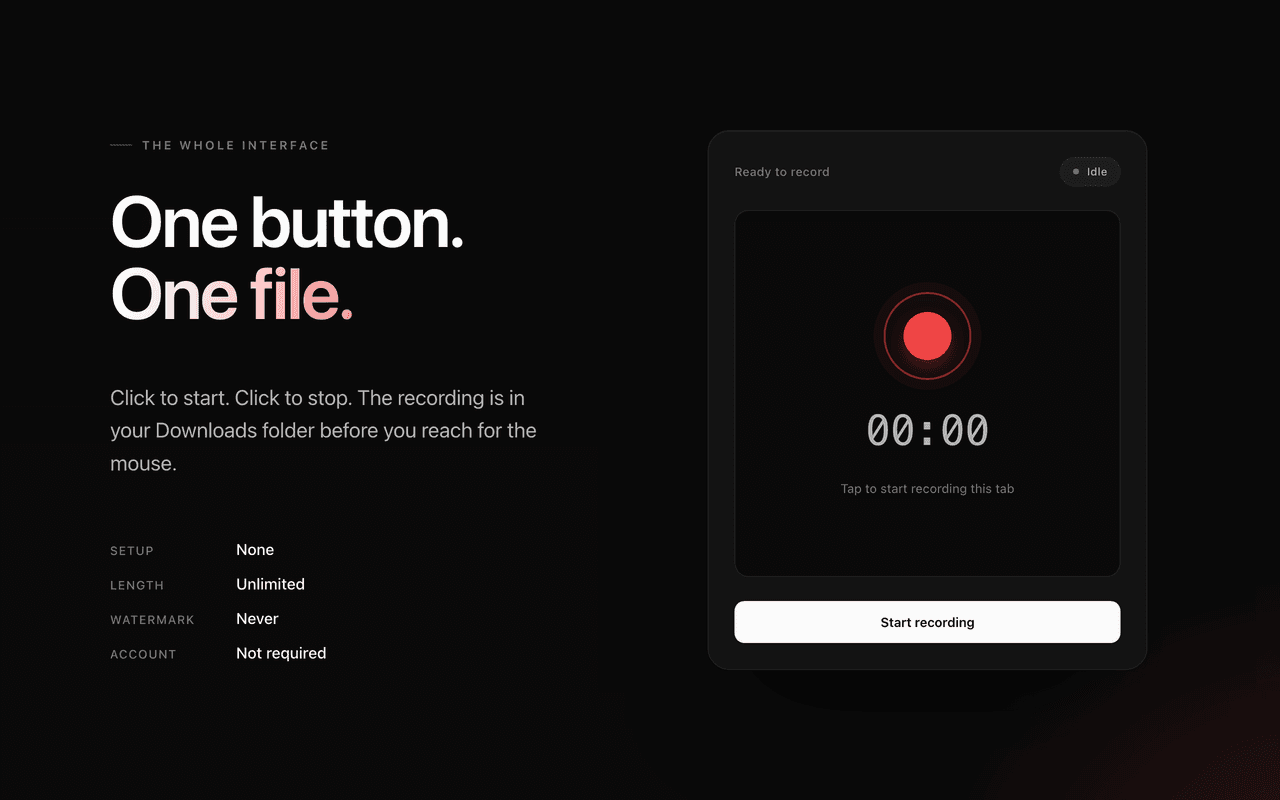
ClearRec popup: pick Screen, Webcam, or Screen + Cam, then click Start Recording
0Bytes uploaded
0Accounts required
0Tracking pixels
0Third-party scripts

§ What it does

A complete screen-recording workflow in one extension.

Capture, edit, and export — without ever signing in, opening a desktop app, or sending a frame to a server you can't audit.

01 · Capture

Five capture surfaces. One launcher.

Record the whole screen, a single application window, a Chrome tab with tab audio, your webcam alone, or screen + webcam picture-in-picture. The launcher remembers the source you used last so the second recording is always one click away.

  • Entire screen with system audio
  • One window, no desktop spill
  • Chrome tab + tab audio
  • Webcam-only selfie mode
  • Screen + webcam picture-in-picture
ClearRec launcher showing Screen, Webcam, and Screen+Cam capture modes with quality picker

02 · Privacy

Nothing leaves your computer. Ever.

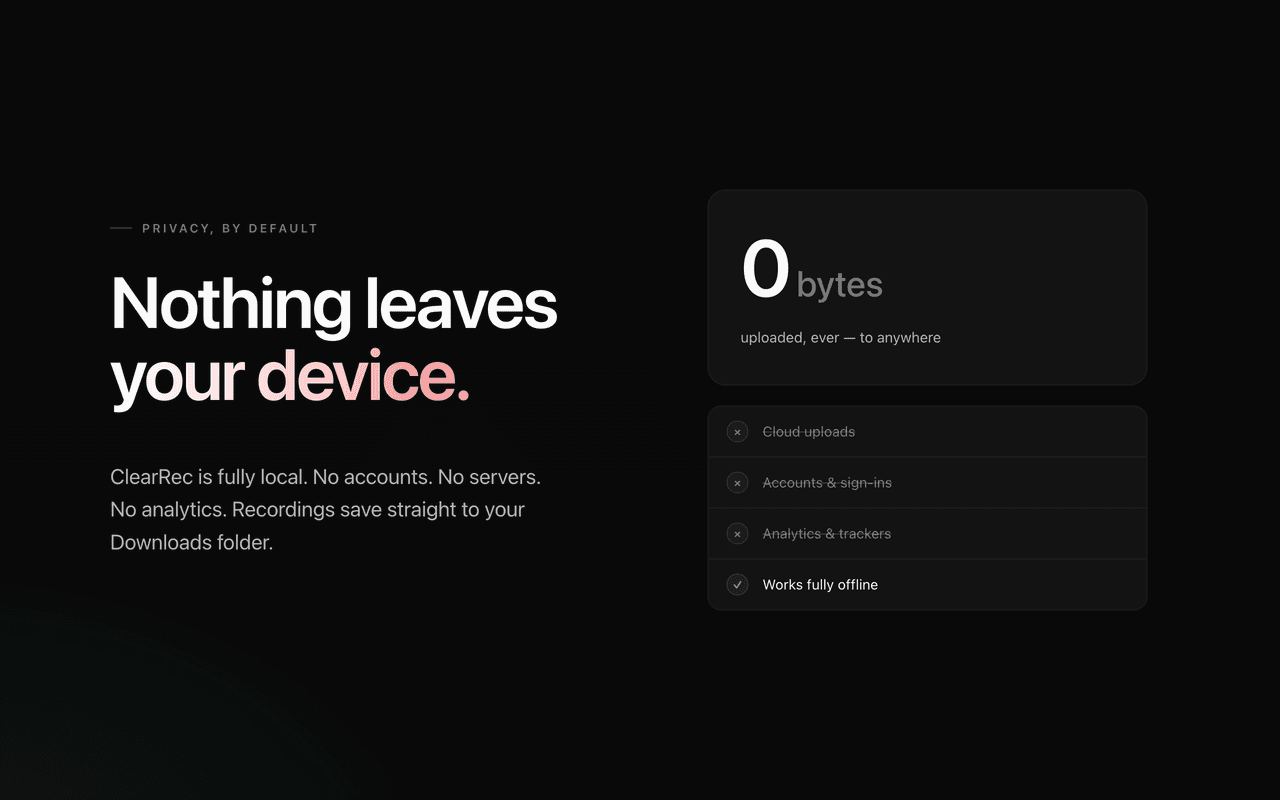
ClearRec uses Chrome's built-in MediaRecorder API and writes the finished file straight to your Downloads folder via Chrome's own download manager. The extension has no network code at all — no analytics, no crash reporter, no third-party SDKs.

  • Encoded by Chrome's MediaRecorder, locally
  • Saved to Downloads via chrome.downloads
  • No accounts, no logins, no licence keys
  • No analytics SDK, no telemetry endpoint
ClearRec privacy panel: zero data collected, no accounts, no uploads

03 · Edit

Trim, crop, and export — without leaving Chrome.

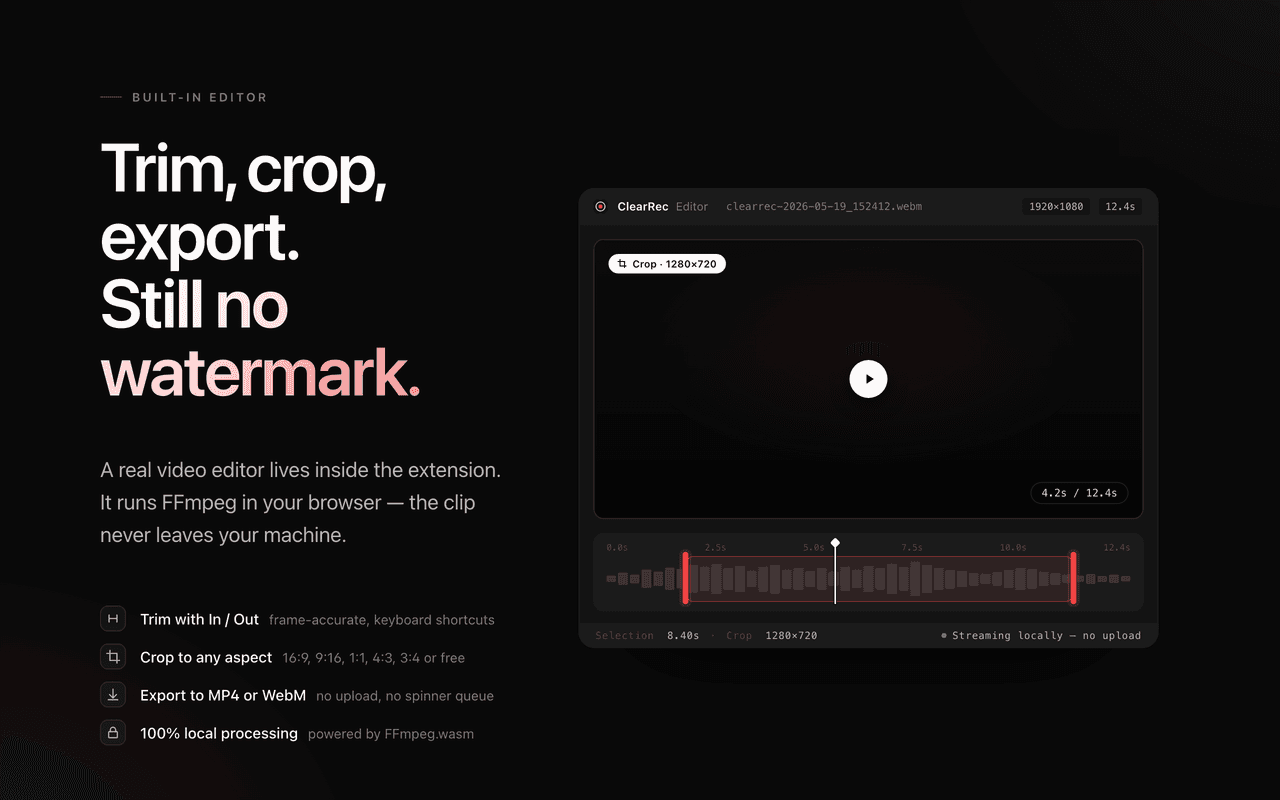
When a recording stops, the editor opens in a new tab with your clip ready to scrub. Drag the in/out handles, lock to an aspect ratio with the crop tool, then export to MP4, WebM, or GIF. When no re-encode is needed, MP4 and WebM cuts stream through in seconds.

  • Frame-accurate trim with [ and ] hotkeys
  • Aspect-locked crop: 16:9, 9:16, 1:1, 4:3, 3:4
  • GIF with palettegen + paletteuse colour optimisation
  • Fast-copy cuts when re-encoding isn't required
ClearRec built-in editor with timeline, trim handles, crop overlay, and export panel

04 · Recents

Your last recordings, one tab away.

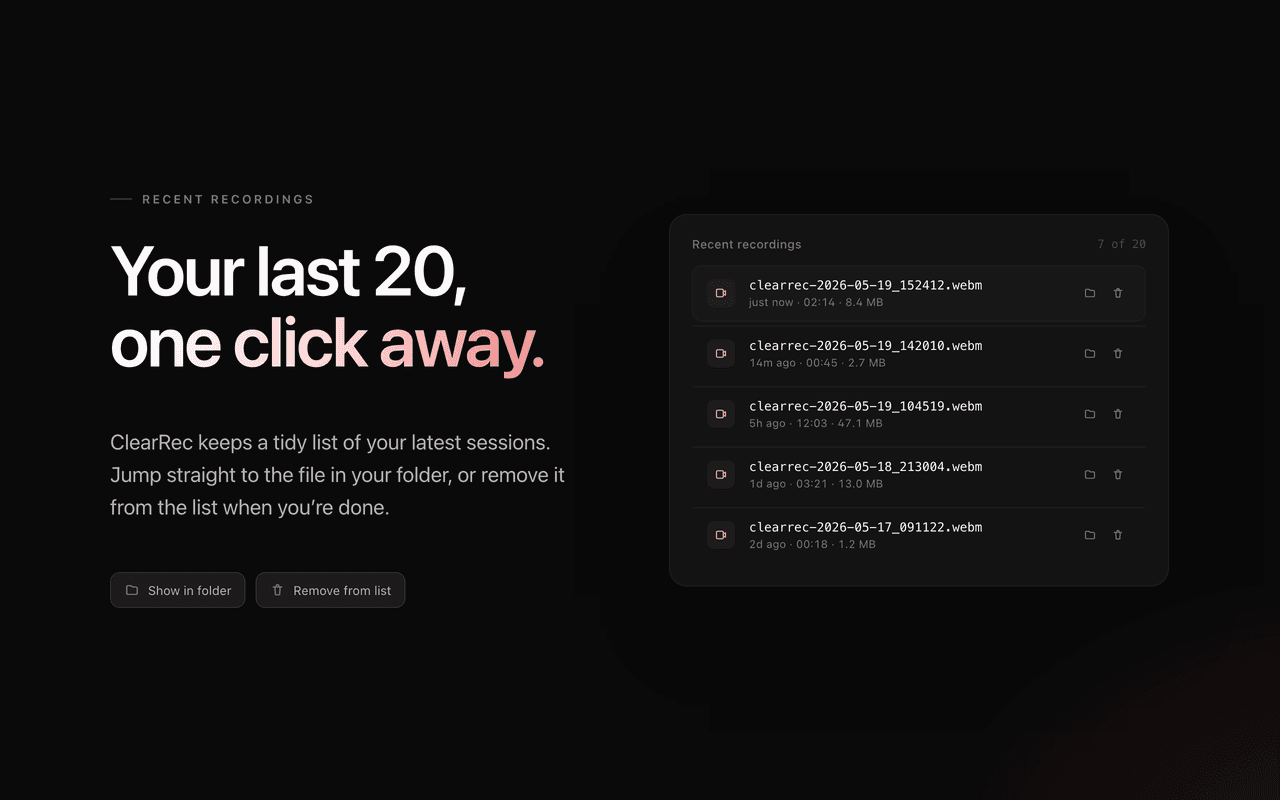
ClearRec keeps a local-only history of the last twenty recordings — filename, size, timestamp — so you can re-open the trimmer on yesterday's clip without hunting through your Downloads folder. The list lives in chrome.storage.local and never leaves the device.

  • Twenty most-recent recordings, locally
  • One-click re-open of the trimmer
  • Reveal in Finder / Explorer
  • Delete from disk straight from the popup
Recent recordings list showing twenty entries with size, duration, and re-open buttons

05 · Save location

Save where you actually want it.

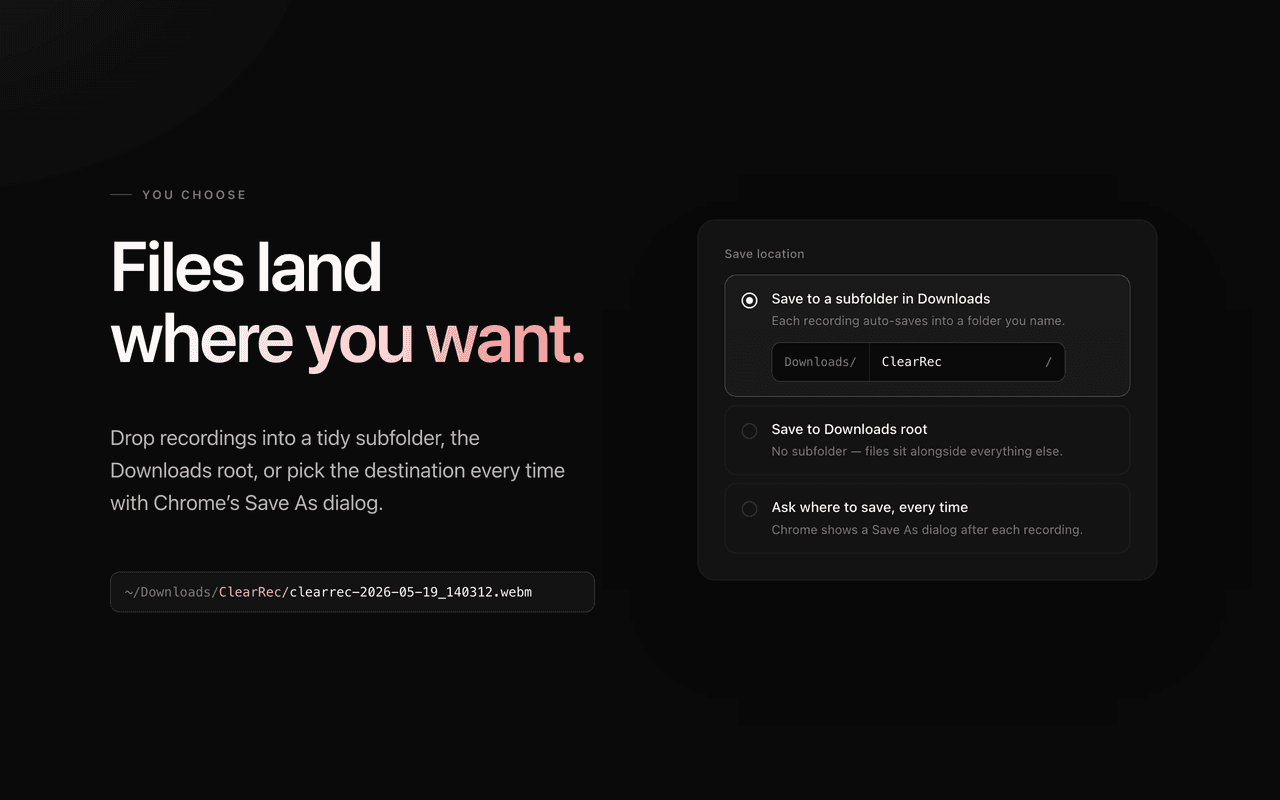
By default ClearRec saves to Chrome's Downloads folder inside a ClearRec/ subfolder, but the destination is yours: tuck recordings into a per-project folder, point them at a USB drive, or let Chrome ask every time. The file lives where you put it.

  • Configurable subfolder under Downloads
  • Per-recording file picker, optional
  • Filename pattern with timestamp tokens
  • Reveal in OS file manager
ClearRec settings showing custom save folder and per-recording file picker option

§ Quality

Six quality tiers — from 720p inbox-friendly to 4K cinematic.

Pick the trade-off you want between file size and visual fidelity. ClearRec defaults to Ultra (1440p · 60fps · 20 Mbps), which is the sweet spot for tutorials, async updates, and bug reports.

TierResolutionFrames / secBitrateBest for
Insane
4K6050 MbpsCinematic captures
Extreme
4K3030 MbpsHigh-detail with smaller files
UltraDefault
1440p6020 MbpsDefault — best balance
High
1080p6010 MbpsStandard HD
Medium
1080p305 MbpsLight-weight HD
Low
720p302.5 MbpsSmallest files for email

For reference: one minute of 1440p · 60fps · Ultra weighs about 150 MB. One minute of 720p · 30fps · Low weighs about 19 MB — small enough for an email attachment.

§ Who uses ClearRec

Built for people who'd rather not sign in to record a video.

Developers

Bug reports that ship in 30 seconds.

Capture a 20-second repro, drop the MP4 into the GitHub issue, never wait for a cloud upload to finish. The MP4 is universal — your reviewer plays it natively on Mac, Windows, Linux, or right inside the browser.

Designers

Prototype walkthroughs without yet another login.

Record a 90-second walkthrough of a Figma flow and send it to one person. No share link to revoke, no analytics on who watched it, no expiring URL to keep alive.

Educators

Full-length lectures that fit your data policy.

Record the whole class, save it straight to a USB drive or institutional NAS. Nothing transits a third-party server, so the school's data-residency rules apply without exception.

Founders & support

Async updates and replies, sent to one inbox.

Two-minute Loom-style replies, but you decide who can play the file. Email it, drop it into Slack, attach it to a Stripe support ticket — the recording is just a file.

Privacy-minded

Capture what you need. Keep where it stays.

ClearRec ships with no analytics, no crash reporter, and no third-party SDKs. The extension has no network code, so there is no endpoint a future owner could quietly switch on.

Creators

4K @ 60fps captures with one-click GIF export.

Record at 4K · 60fps · 50 Mbps for cinematic source, then export a perfectly-paletted GIF directly from the trimmer. The palettegen + paletteuse pass keeps colours accurate, not muddy.

§ How it stacks up

ClearRec vs. Loom vs. Screencastify — the honest table.

Loom and Screencastify are great when share-links and viewer analytics are what you need. ClearRec is for the recordings you don't want a server to see. Pick the trade-off that fits the job, not the brand.

FeatureClearRecLoom (free)Screencastify (free)
Price (free tier)Free, no capsFree, cappedFree, capped
Account requiredNoYesYes
Cloud uploadNeverAlwaysAlways
Watermark on free tierNoNoOptional
Recording length (free)Unlimited≤ 5 min≤ 5 min
Max resolution4K @ 60 fps1080p @ 30 fps1080p
Native GIF exportYes (palettegen)NoNo
Built-in trim + cropYesYes (web app)Yes (web app)
Works offlineYesLimitedLimited
Analytics / telemetryNoneYesYes

Free-tier specifications taken from Loom and Screencastify public pricing pages, May 2026. ClearRec column reflects the documented extension behaviour shipped in v1.0.

§ FAQ

Quick answers, on the record.

Is ClearRec really free? Does it have a watermark?

Yes, completely free. No watermark, no upgrade prompt, no Pro tier. ClearRec has no business model that requires a paywall.

Where is my recording saved?

To Chrome's Downloads folder, optionally inside a ClearRec subfolder (configurable). The file is yours — ClearRec keeps no copy, and the extension has no servers.

Does ClearRec upload my recording anywhere?

No. The extension has no network code at all. Recording, encoding, trimming, and exporting all run inside your browser using Chrome's MediaRecorder API and ffmpeg.wasm.

Can I record system audio and my microphone at the same time?

Yes. Both toggles in the launcher control whether tab/system audio and microphone audio are mixed into the recording.

What's the longest recording I can make?

There is no hard cap. Recording length is limited only by your free disk space. One minute of 1440p · 60fps · Ultra weighs about 150 MB.

Does it work offline?

Yes. After install, ClearRec needs no internet connection to record, edit, or export.

Can I record a specific Chrome tab without recording the rest of the screen?

Yes. Choose Screen mode, then pick the tab in Chrome's screen-share dialog. Tab audio is captured along with the video.

Does ClearRec work with Google Meet, Zoom, or Microsoft Teams calls?

Yes. ClearRec records anything Chrome can display, so it captures any web app and any other application's window.

What format should I pick — MP4 or WebM?

MP4 for sharing with people on any operating system or social platform. WebM for the smallest file at the same visual quality if you know the recipient can play it (every modern browser can).

Can I make a GIF from a recording?

Yes. Open the recording in the trimmer, switch the Format selector to GIF, set the trim range, optionally crop, then Export GIF. The editor generates an optimised colour palette before encoding, so colour reproduction is much better than naive GIF tools.

Why does ClearRec ask for Allow access to file URLs?

The trimmer streams the saved recording off disk via a file:// URL so it doesn't have to buffer the entire (sometimes multi-hundred-megabyte) file in memory. If you decline, the trimmer falls back to a manual file-picker on each open.

Does ClearRec work on Mac, Windows, and Linux?

Yes — on any platform where Chrome 116+ is supported, including Edge, Brave, Arc, Opera, and Vivaldi.